Introducing Spend Autopilot: your bank and MoMo alerts, recorded for you
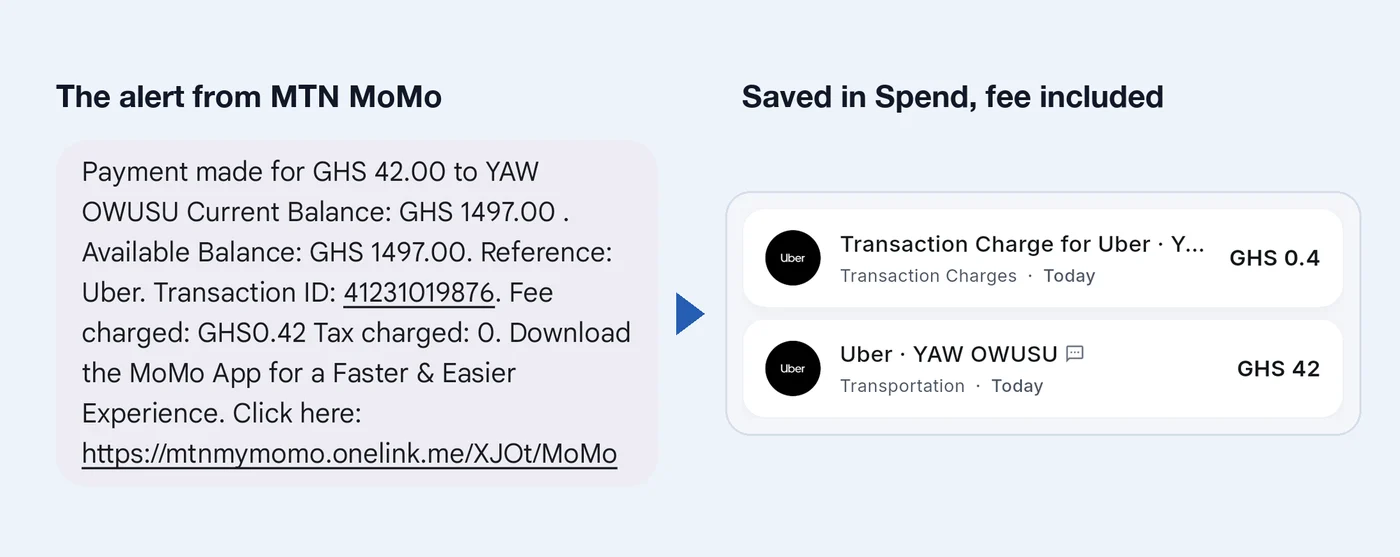
Every time you make or receive a payment through digital channels like mobile money or bank apps, you get notified on your phone, usually through in-app notifications and, in most cases, by text message. The notification includes the amount, the date, who it was with, and often the transaction charges. The record already exists, but to track it in a personal finance app, you still have to open the app and type it all in again.
For the team at Spend, this has been on our minds for some time, and we have been exploring ways to reduce the manual work involved. Many of you have told us about having to type in every transaction by hand.
You enjoy analysing and reviewing your transactions, but getting them into the app is where the barrier appears, and that's where tracking tends to fall apart.
For the past few months, we've been working on our first step towards automating how you track your finances in Spend. We're glad to announce that it's here, and we call it Spend Autopilot. Turn it on, and Spend reads the SMS alerts for your transactions and turns them into records for you. It's available on Android in Ghana and Nigeria now.
How it works
Spend still isn't connected to your bank or wallet. It works from the alerts that already come to your phone.
- Open the menu in Spend and tap Spend Autopilot. If you haven't updated the app yet, it's called Bank & MoMo messages.
- Choose how far back to import past alerts: none, 7, 30 or 90 days, or from a date you pick.
- Allow access to your SMS when Android asks.
- Tell Spend which of your accounts (for example, your MoMo wallet) each bank or wallet belongs to. You only do this once.
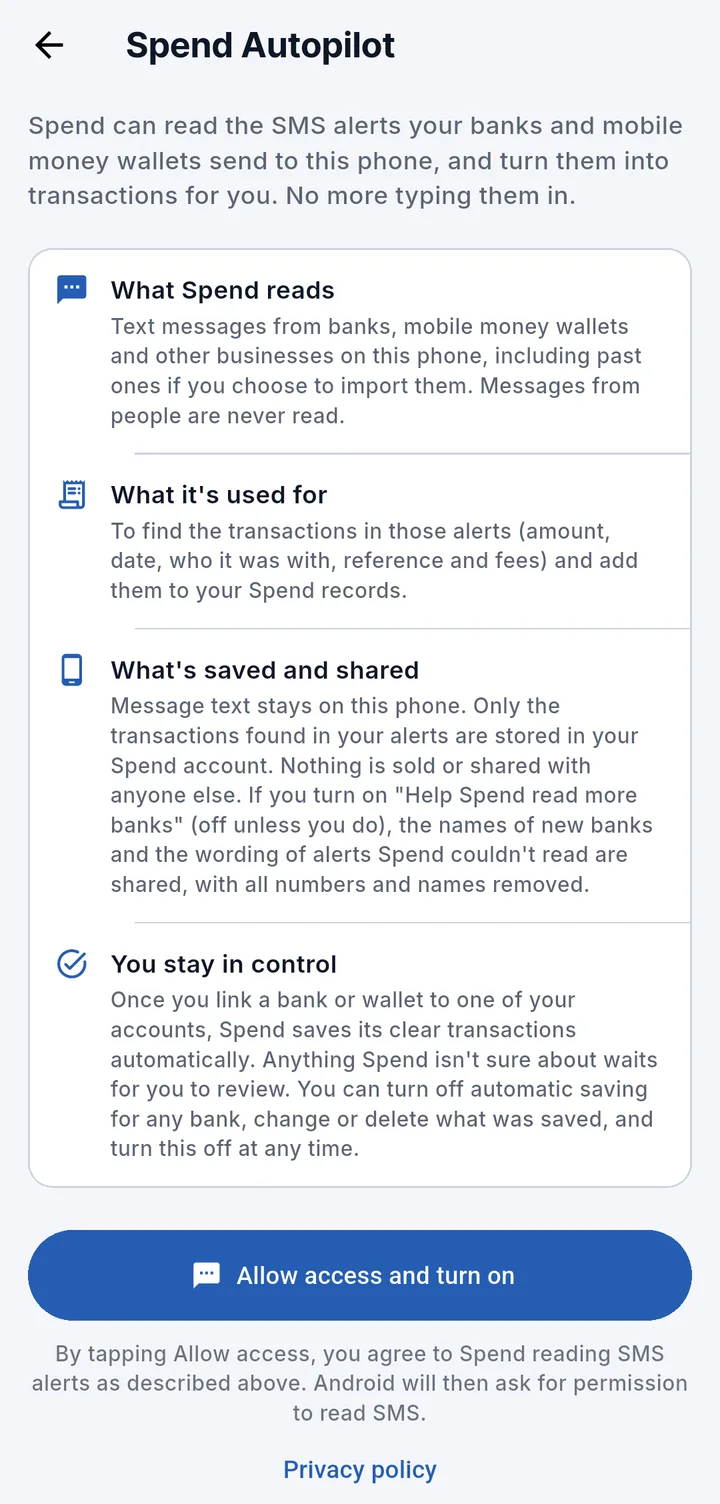
After that, Spend picks up new alerts as they come in, even when the app is closed. You'll get one notification showing how many new alerts have come in, and they'll be ready the next time you open the app.
It handles the fiddly parts
- Fees. When an alert includes a fee, Spend records it as a charge linked to the transaction.
- Categories. Spend suggests a category from the alert's note and who it was with, and learns from the choices you make.
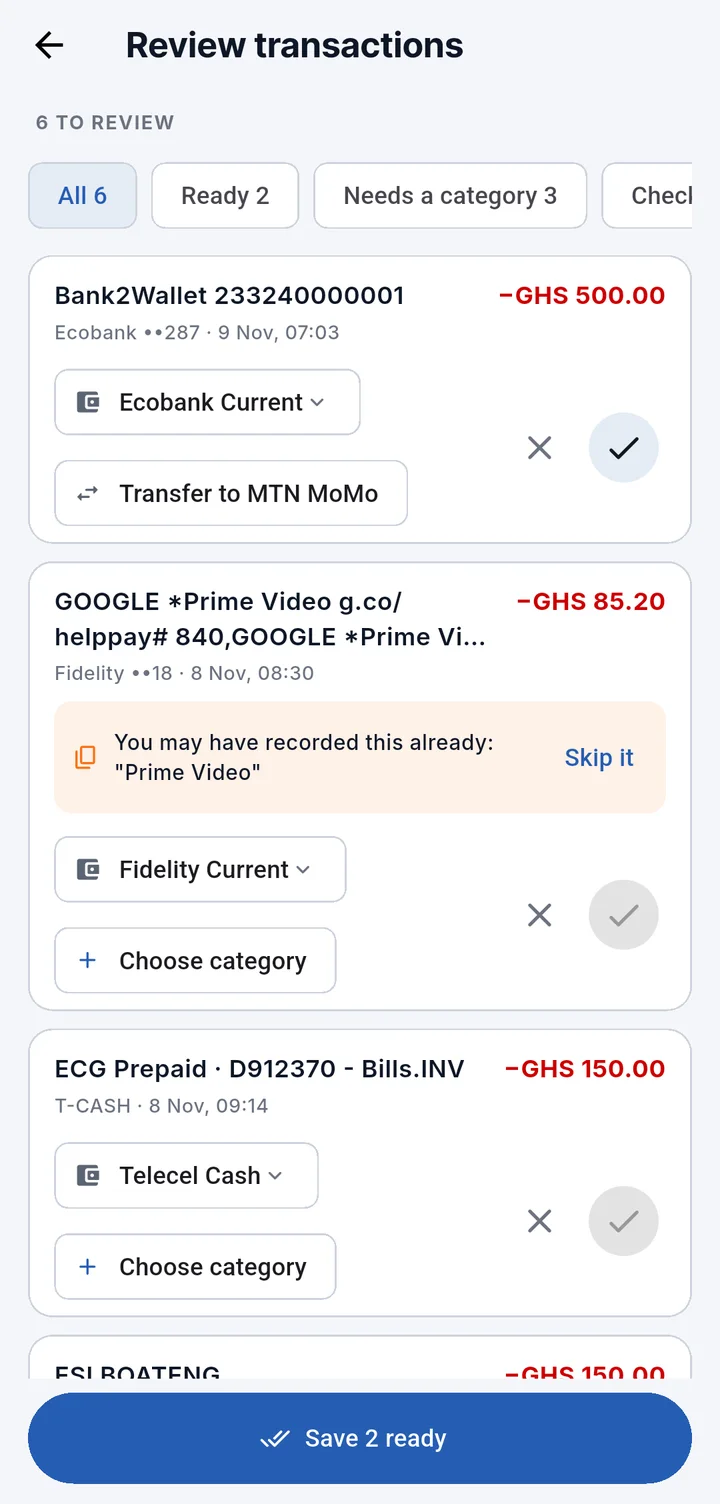
- Moving your own money. When you send money from your bank to your MoMo, you get two alerts. Spend spots the pair and suggests one transfer, so it doesn't count as spending.
- Duplicates. Importing the same alert twice won't add it twice. If you already typed a transaction in by hand, Spend flags it before adding it again.
What gets saved automatically
When an alert is clear, Spend saves it for you. That means Spend has read it confidently, knows the account, has a category for it and can't find it in your records already.
Everything else waits in a review list for you to check. That includes anything that might be a transfer between your own accounts.
Spend keeps a Saved automatically list, where you can change or delete what it saved. You can also turn off automatic saving for any bank, and its alerts will wait for your review instead.
Your messages stay on your phone
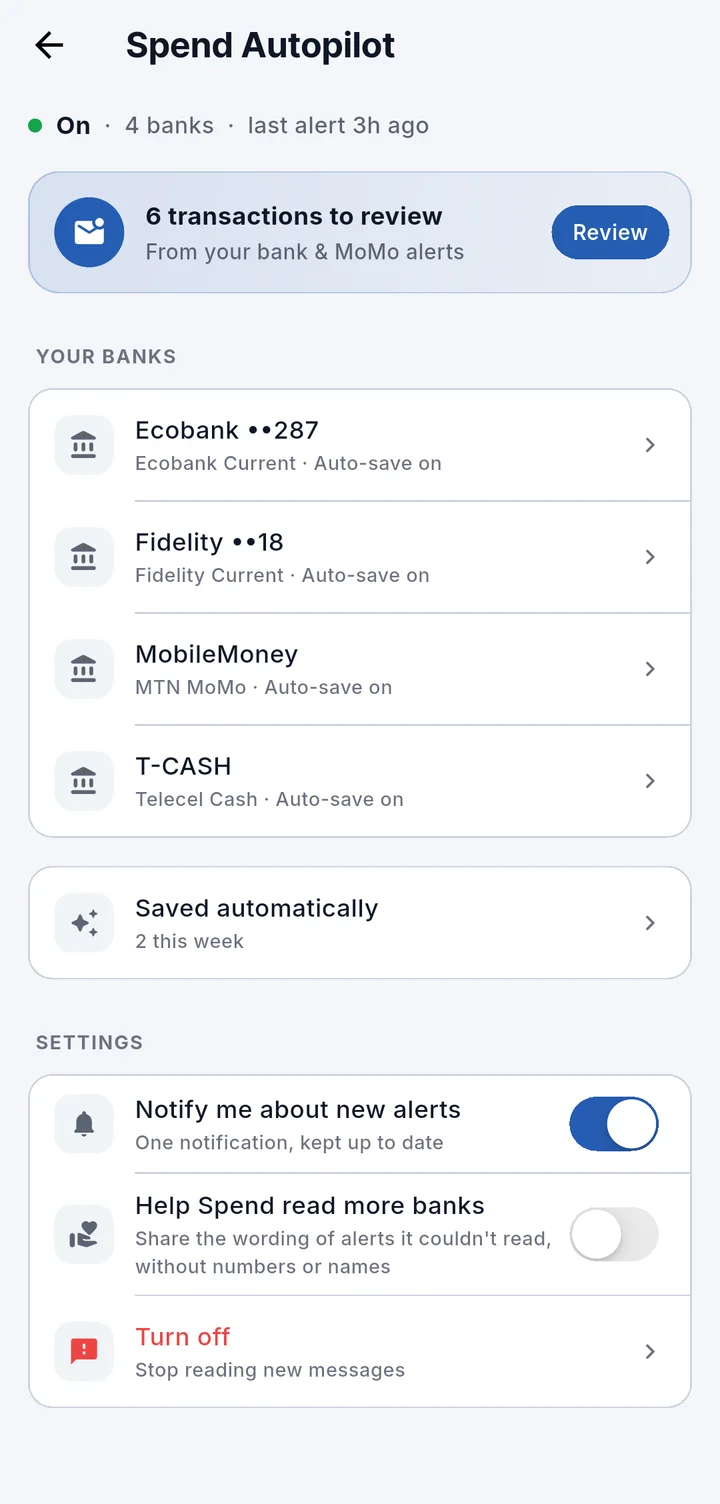
Reading your text messages is a big thing to ask, so here's exactly what happens:
- It's off until you turn it on. You can turn it off at any time. Transactions you've already saved stay in your records.
- Reading happens on your phone. Spend checks messages from banks, wallets and other businesses to find transaction alerts. The message text is never sent to our servers.
- Messages from people are never read. Anything sent from a regular phone number is ignored.
- Only the transactions are stored. A saved transaction syncs to your Spend account, the same as one you type in yourself.
- We never sell your SMS data. We only use it to record your transactions.
There's one optional exception. If you turn on Help Spend read more banks, Spend shares the names of new banks you track and the wording of alerts it couldn't read, with all numbers and names removed. This helps us support more banks. It's off unless you turn it on, and Spend shows you an example of what would be shared first. Everything above works the same whether you turn it on or not.
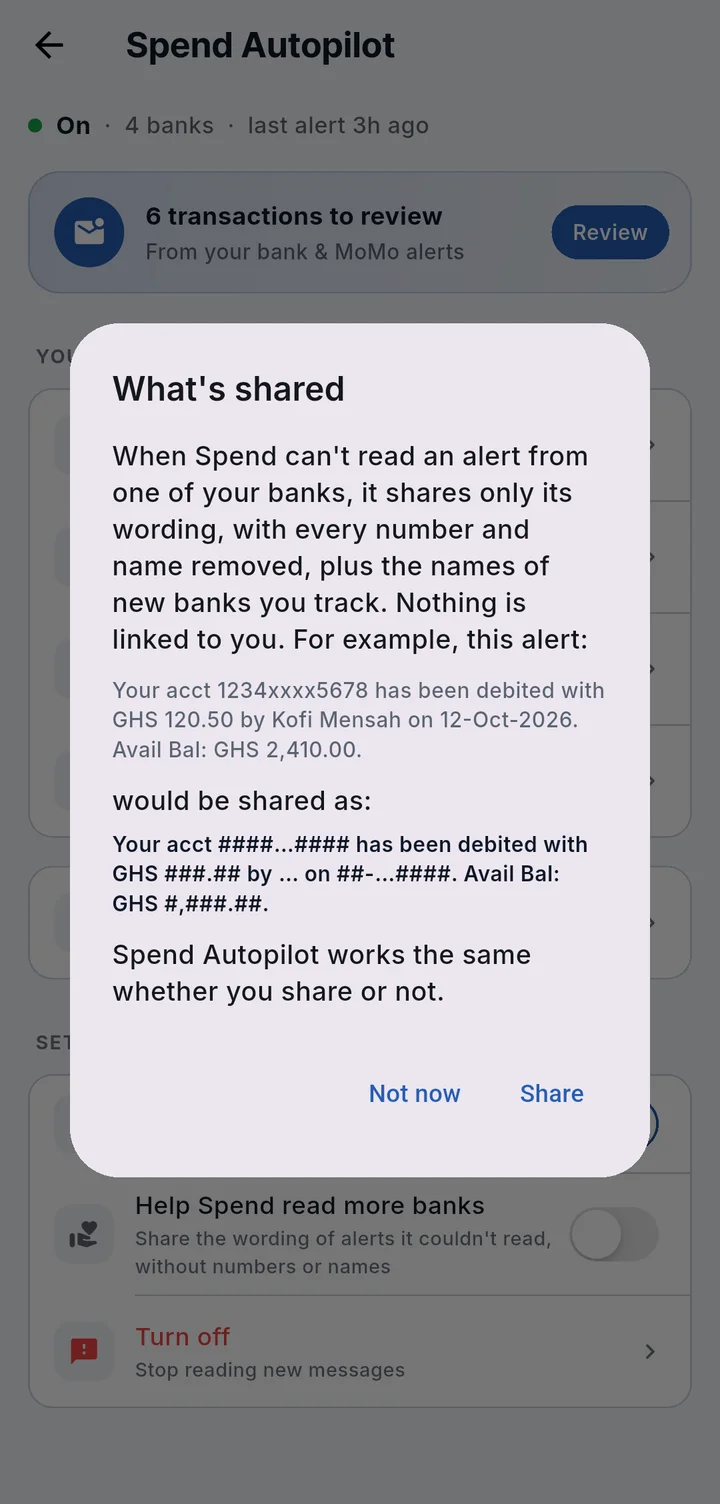
You can read the full details in our privacy policy.
What about iPhone?
We're wrapping up Spend Autopilot for iPhone. It's in testing now, and we expect to release it soon. On iPhone, it's set up through Apple's Shortcuts app.
Until then, you can copy an alert on your iPhone and paste it into Spend's quick entry, and Spend will read it for you.